Table of Contents
Introduction
How to Create a Blog Post in WordPress: WordPress is the world’s most popular platform for creating websites and blogs powering over 40% of all websites on the internet. Whether you’re running a business website, a personal blog, or an online magazine, WordPress makes publishing content incredibly easy and powerful.
In this detailed guide, we’ll walk you step-by-step through how to create a blog post in WordPress, from logging into your dashboard to publishing your first article complete with images, categories, tags, and formatting tips.
By the end of this post, you’ll not only know how to write a blog post but also how to optimize it for SEO and improve readability.
Step 1: Log in to Your WordPress Dashboard
To begin, you need access to your WordPress admin panel.
- Open your browser and go to your website’s login URL, typically:
https://yourwebsite.com/wp-admin - Enter your username and password, then click Log In.
You’ll now see your WordPress Dashboard, which is the control center for your website.

Step 2: Access the Posts Section
Once you’re in the dashboard:
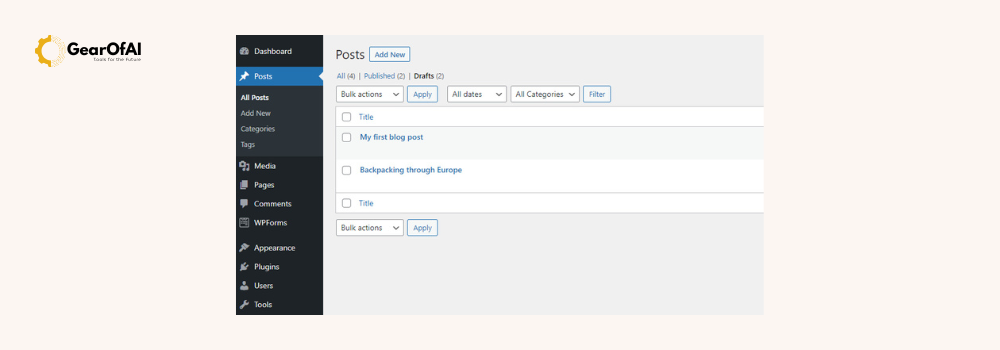
- On the left-hand sidebar, hover over “Posts” and click “Add New”.
This will take you to the WordPress Editor, where you can start writing your blog post.
Step 3: Add a Blog Post Title
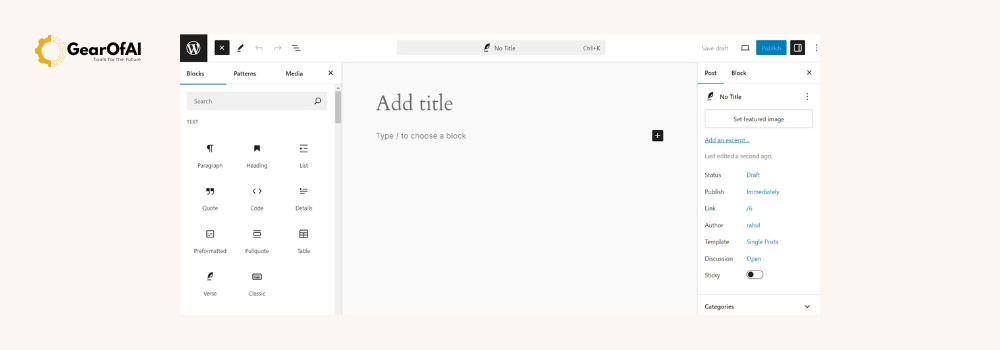
At the top of the editor, you’ll find a field labeled “Add title”.
Enter the title of your post here make it clear, catchy, and SEO-friendly.
For example:
How to Create a Blog Post in WordPress Complete Beginner’s Guide
Pro Tip:
Your post title should include your focus keyword (in this case, “How to Create a Blog Post in WordPress”).
Step 4: Write Your Blog Content
Below the title field is the content editor. This is where you’ll write the main body of your article.
WordPress uses the Block Editor (Gutenberg), where each paragraph, image, or video is a separate “block.”
Here’s an example of how a basic blog post looks in HTML (for understanding the structure behind it):
<article>
    <h1>How to Create a Blog Post in WordPress</h1>
    <p>Creating your first post in WordPress is simple and fun. Follow these steps to publish your content easily.</p>
    <h2>Step 1: Log in to WordPress</h2>
    <p>Go to yourdomain.com/wp-admin and enter your login credentials.</p>
</article>
Step 5: Add Headings and Subheadings
Headings make your post more readable and help with SEO.
You can add headings by clicking the ( + ) icon → Heading block.
Use them wisely:
<h1>for your main title (automatically added).<h2>for main sections.<h3>for sub-sections.
Example:
<h2>Why WordPress is Great for Blogging</h2>
<p>WordPress offers flexibility, SEO tools, and an easy-to-use interface.</p>
Tip: Use H2s and H3s to structure your post logically this improves both user experience and SEO ranking.
Step 6: Add Images and Media
Images make your content engaging and easier to understand.
To add an image:
- Click the ( + ) icon → Image block.
- Upload an image from your computer or choose one from the Media Library.
Alternatively, you can add an image using HTML code:
<img src="https://yourwebsite.com/wp-content/uploads/2025/01/blog-image.jpg" alt="WordPress Blog Editor Screenshot">
Pro Tip:
- Always use alt text for better SEO and accessibility.
- Compress images before uploading to improve site speed.
Step 7: Format Text for Readability
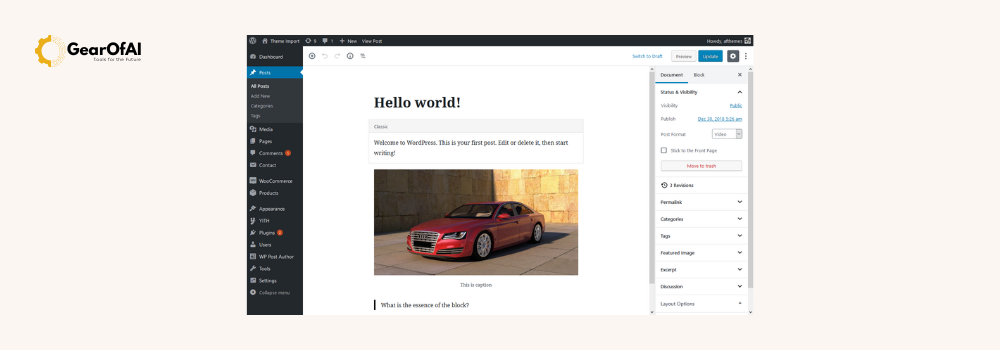
Use the editor toolbar to:
- Bold important words
- Italicize phrases
- Add bullet points or numbered lists
- Insert quotes or code snippets
Example code block:
<pre><code>wp post create --post_title="My First Blog" --post_status=publish</code></pre>
This makes your post visually appealing and easier to scan.
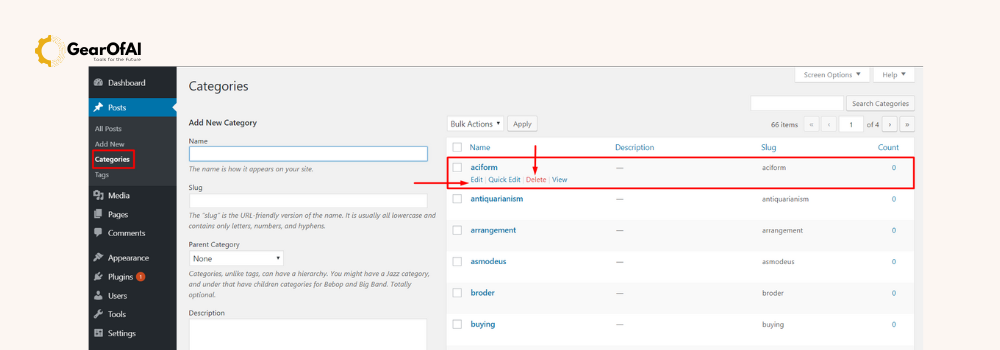
Step 8: Add Categories and Tags
Categories and tags organize your blog posts so visitors can find related content easily.
Categories:
- Broader topics (e.g., “WordPress Tutorials,” “Web Design”)
- Each post should have at least one category
Tags:
- More specific keywords (e.g., “Gutenberg,” “WordPress Editor”)
To add them:
- Go to the right sidebar → “Post” tab → “Categories” and “Tags.”
Step 9: Set a Featured Image
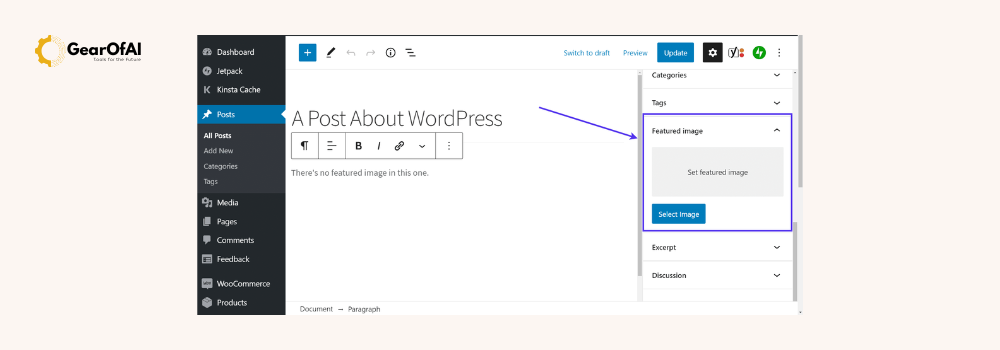
A featured image represents your post on the homepage and social media previews.
Steps:
- On the right sidebar, find Featured Image.
- Click Set featured image.
- Upload or choose an image.
Make sure your image size is optimized (e.g., 1200×630 px for best results).
Step 10: Preview Your Post
Before publishing, click the Preview button in the top-right corner.
This lets you view how your post will look on desktop, tablet, and mobile.
Check for:
- Proper formatting
- Image alignment
- Correct links
- Spelling and grammar
Tip: Always preview before publishing to catch small errors.
Step 11: Publish Your Post
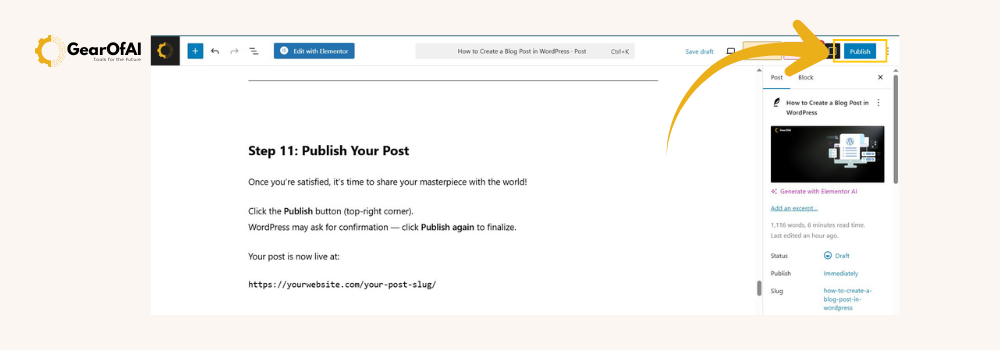
Once you’re satisfied, it’s time to share your masterpiece with the world!
Click the Publish button (top-right corner).
WordPress may ask for confirmation click Publish again to finalize.
Your post is now live at:
https://yourwebsite.com/your-post-slug/
Step 12: Edit or Update an Existing Post
To make changes later:
- Go to Posts → All Posts.
- Hover over your article and click Edit.
- Update content, add images, or tweak SEO.
- Click Update to save changes.
You can edit as often as you like WordPress automatically saves revisions.
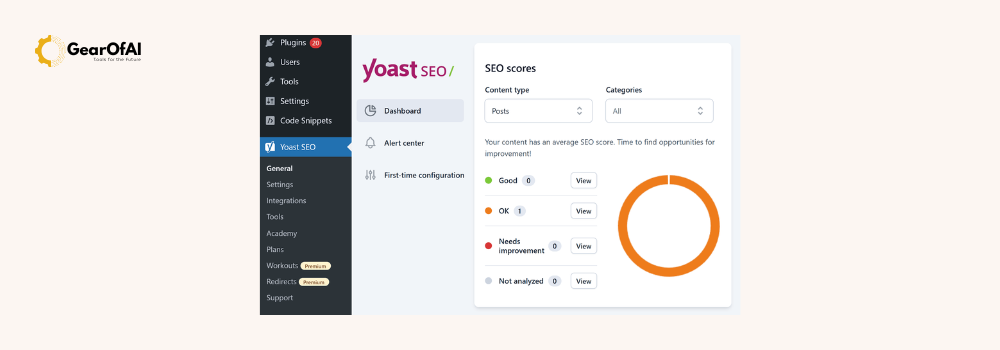
Bonus: SEO Optimization Tips for Blog Posts
To improve your visibility in search engines:
- Use your focus keyword in:
- Title
- URL
- First 100 words
- At least one heading (
<h2>)
- Add internal links to related posts.
Example:<a href="https://gearofai.com/introduction-to-wordpress">Learn the Basics of WordPress</a> - Include external links to authoritative sites.
Example:<a href="https://wordpress.org/support/">Visit the Official WordPress Support Page</a>
Common Mistakes to Avoid
- Forgetting to use headings and paragraphs correctly.
- Uploading large, uncompressed images.
- Ignoring categories and tags.
- Not previewing before publishing.
- Overstuffing keywords (avoid keyword spam).
Conclusion
Creating a blog post in WordPress is simple once you understand the basics. You’ve learned how to:
- Log in and access the post editor
- Add content, headings, and images
- Organize your post with categories and tags
- Optimize for SEO and readability
WordPress gives you complete control over your content making it the perfect platform for beginners and professionals alike.
So go ahead log in to your WordPress site today and publish your first blog post!
Contact: info@gearofai.com
Website: https://gearofai.com