Table of Contents
Introduction
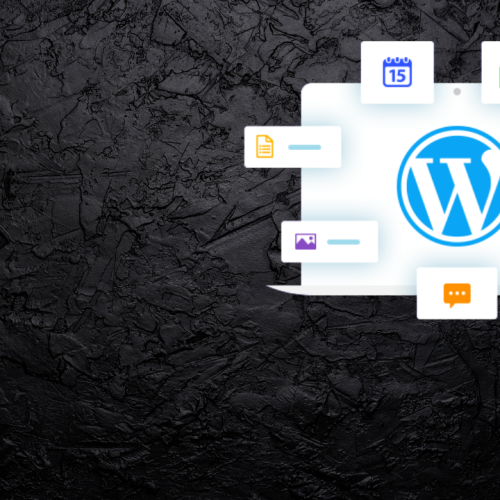
Installing WordPress Step-by-Step: If you’re new to website creation, WordPress is the perfect platform to start your journey. It’s user-friendly, customizable, and used by millions of businesses and creators around the world. In this beginner’s guide, we’ll walk you through the process of installing WordPress step-by-step, from choosing a hosting plan to setting up your first website no coding required!
Why Choose WordPress?
Before diving into the installation, it’s essential to understand why WordPress is the most popular content management system (CMS).
- Ease of Use: You can create, edit, and publish content without technical knowledge.
- Flexibility: WordPress supports thousands of themes and plugins.
- SEO-Friendly: Built-in tools and plugins like Yoast SEO help your site rank better.
- Community Support: A massive global community ensures you always find help when needed.
Step 1: Choose a Hosting Provider and Domain Name
To install WordPress, you’ll need two essential things a domain name and web hosting.
- Domain Name: This is your website’s address (e.g., gearofai.com).
- Web Hosting: This is where your website files are stored.
Popular WordPress hosting options include:
Step 2: Install WordPress Automatically (One-Click Install)
Most hosting companies offer 1-click WordPress installation, making it simple for beginners.
- Log in to your hosting account.
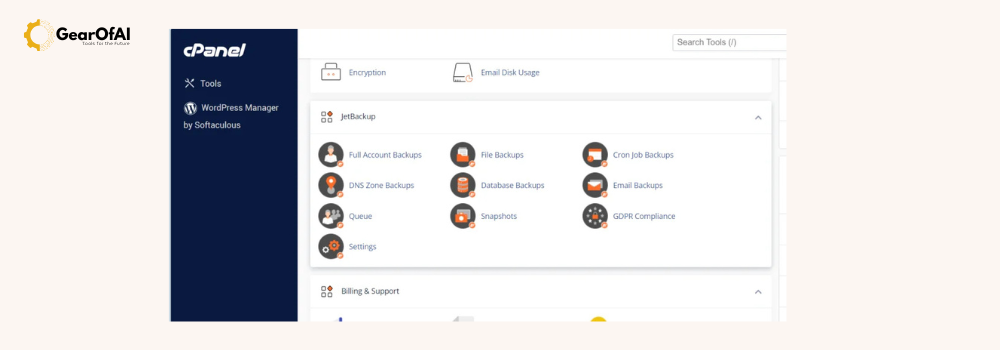
- Go to your control panel (cPanel).
- Find the “WordPress” or “Softaculous Apps Installer” option.
- Click Install.
- Choose your domain, add a site title, username, and password.
After installation, you’ll get a link like this:
👉 yourdomain.com/wp-admin Use it to log in to your WordPress dashboard.
Step 3: Install WordPress Manually (Optional Method)
If your hosting provider doesn’t offer one-click installation, you can install WordPress manually.
Here’s how:
- Download WordPress from WordPress.org.
- Upload the files to your hosting server via FTP (like FileZilla).
- Create a MySQL database from your hosting control panel.
- Edit the wp-config.php file to add your database details.
- Open your domain name in a browser and complete the setup.
Step 4: Log in to Your WordPress Dashboard
Once installed, go to:
🔗 yourdomain.com/wp-admin
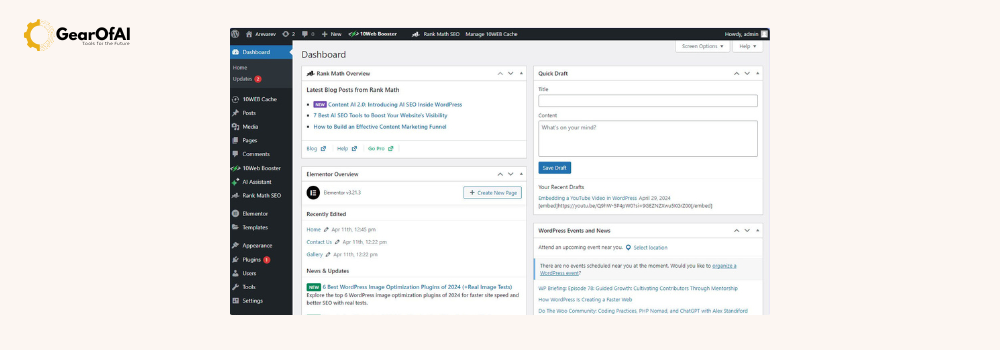
Use your login details to access your WordPress Dashboard this is your website’s control room.
From here, you can:
- Change themes
- Add pages and posts
- Install plugins
- Manage menus and widgets
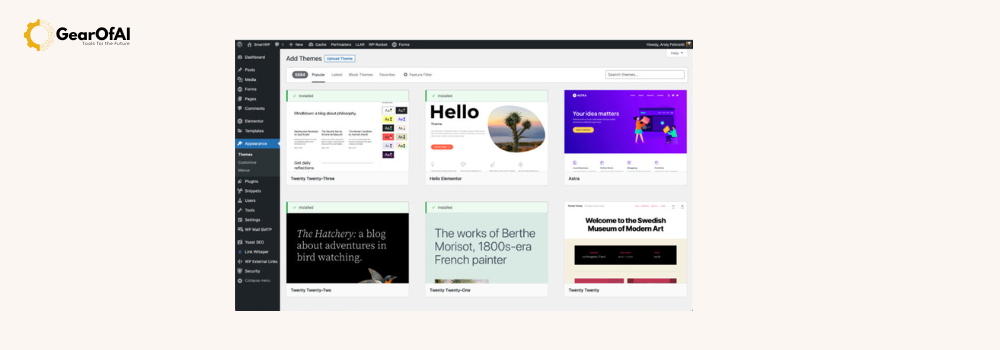
Step 5: Choose and Install a Theme
Your theme controls how your website looks.
To install one:
- Go to Appearance → Themes → Add New
- Search for free themes or upload a premium one.
- Click Activate once installed.
Popular beginner-friendly themes:
- Astra
- OceanWP
- GeneratePress
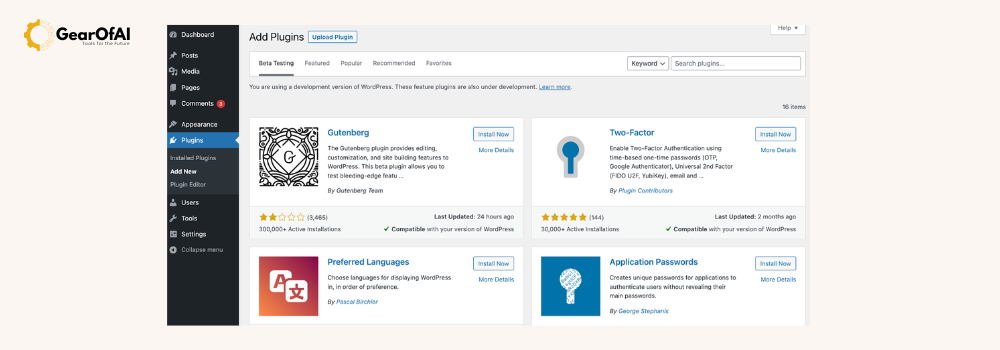
Step 6: Install Essential Plugins
Plugins add extra features to your site like SEO, contact forms, and security.
Must-have plugins:
- Yoast SEO: Helps with on-page SEO optimization.
- Elementor: Easy drag-and-drop website builder.
- WPForms: Create simple contact forms.
- Wordfence Security: Protect your site from threats.
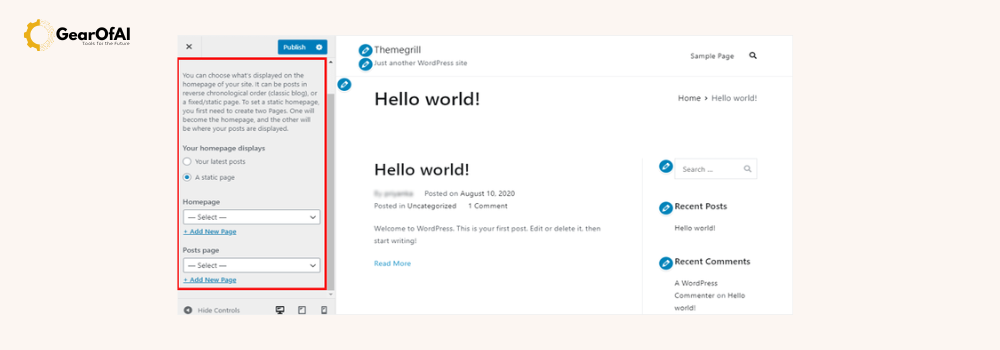
Step 7: Customize Your Website
Go to Appearance → Customize to modify your site’s colors, fonts, and layout.
You can also set up menus, sidebars, and homepage designs.
If you’re using a page builder like Elementor, you’ll have complete design flexibility.
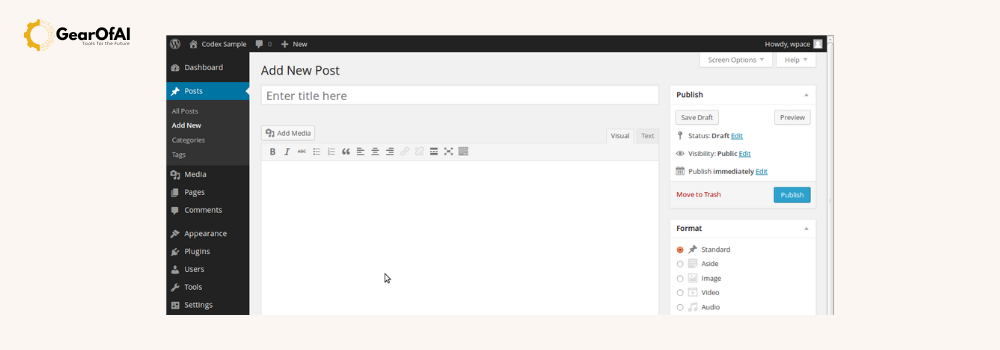
Step 8: Create Your First Page and Post
Now, it’s time to publish your first content!
- Go to Pages → Add New for static content (like About or Contact).
- Go to Posts → Add New for blog entries.
Add a featured image, optimize with keywords, and click Publish.
Step 9: Secure and Maintain Your Website
To keep your site safe and fast:
- Update WordPress regularly.
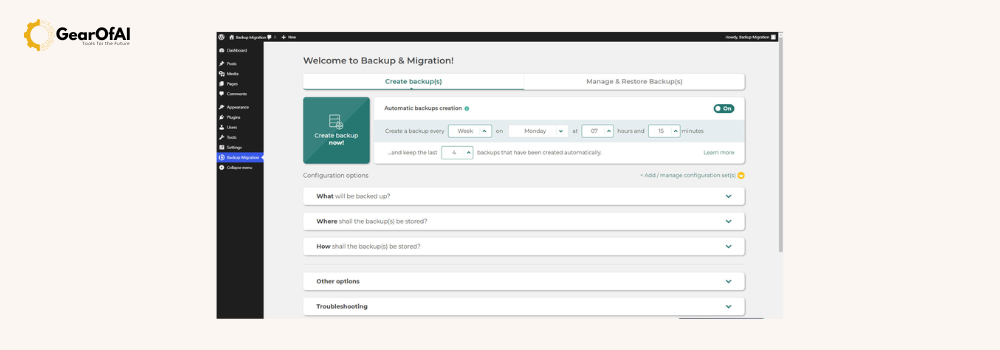
- Take backups using plugins like UpdraftPlus.
- Use SSL certificates for data protection.
- Monitor site performance using Google Search Console.
Conclusion
Installing WordPress is easier than ever especially with one-click installation options. Whether you’re launching a personal blog, portfolio, or business site, WordPress gives you the power to build something professional and scalable without technical barriers.
For more tutorials and guides, visit GearOfAI.com, where we share the best AI tools, WordPress tips, and web development insights to help creators and professionals grow online.